
Get Vayli for Windows.
Vayli for Windows is available from Microsoft Store, with a three-day trial of every tool and a one-time license from Modi Studio.
Install from the official Microsoft Store listing
Get Vayli from Microsoft Store
Use the link above to reach the official listing for Vayli. Check the application name before installing, then choose the Store’s install or get control. Your browser may ask to open the Microsoft Store application. Follow the Store prompts on your PC and launch Vayli when installation finishes. No separate installer download is required from this website.
If the Store does not open, copy the listing link into a browser on the Windows PC where you want to use Vayli. Store availability and installation prompts can depend on your Windows configuration. If installation fails, keep the exact error message for support rather than repeatedly reinstalling without checking the cause.
Check your Windows version and setup
Vayli supports 64-bit Windows 10 version 1809, build 17763, or later, and Windows 11. Check your system information before installing if you are unsure which version you have. Compatibility with Vayli does not change Microsoft’s support policy for your operating system. Keep your PC updated according to the support options available for your Windows version.
As a planning estimate, allow around 200 MB of memory and 100 MB of disk space. Actual usage varies with the modules you enable and the information you keep. Clipboard images and parked files need additional storage. Multi-monitor setups are supported; select the display where you want the notch to appear and test it with your usual display scaling.
Take a first look at the notch
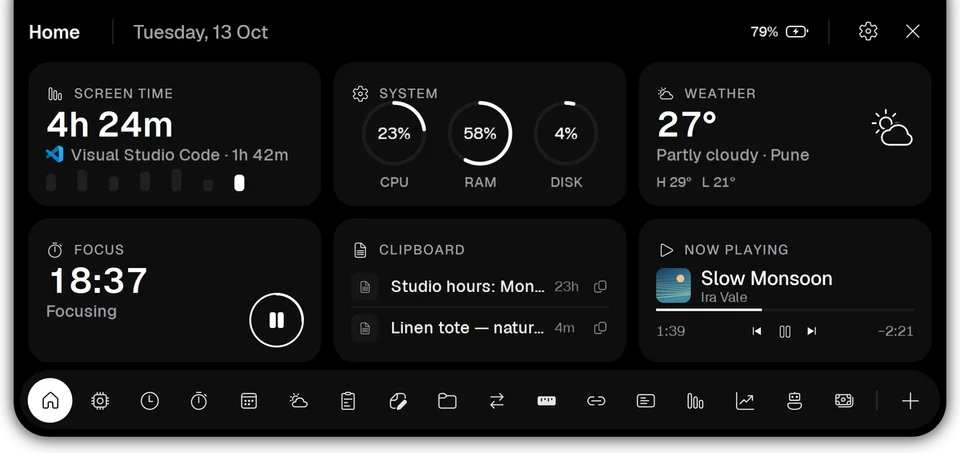
Open Vayli after installation and follow the welcome flow. The notch sits at the top of the screen. Hover over it, click it, or use your configured shortcut to open the panel. Start with Home for a view of useful information, then try a tool that fits a task you already do, such as finding a copied passage or setting a timer.
Settings lets you choose modules and appearance. You do not have to keep every tool enabled. Visit the feature collection for screenshots, or read how a notch app works on Windows if this type of interface is new to you. The clipboard guide gives a practical first task to try.
Use the three-day trial
The trial makes every tool available for three days. You do not need to create a Vayli account, supply an email address or enter a payment card to start the app trial. Use this time to check the notch on your own screens, try your usual media player and decide which modules you want to keep using.
When the trial ends, a license keeps Vayli running. It costs ₹199 one-time + GST for one PC. Taxes are calculated at checkout, and the license includes free updates for Vayli 1.x. Later major versions are paid upgrades. The pricing section links to checkout and explains the license; the refund policy describes the three-day refund window.
Activate your license and keep it safe
After purchase, your license key arrives by email. Open Vayli, go to Settings → License, paste the key and choose Activate. Check the email address used at checkout and your spam folder if you cannot find the message. Keep the key private: you do not need to post it publicly to ask an installation question.
One license activates one PC at a time. When moving to another PC, deactivate the old installation under Settings → License before activating the new one. If the old computer is unavailable, contact [email protected]. Send enough information to describe the problem, but avoid sending clipboard contents or unrelated personal files. Read the release notes for recent changes and the privacy policy for details of local data and license checks.
Questions about download
Is the Microsoft Store download the trial?
Install Vayli from Microsoft Store to start the three-day app trial. Purchase a license through the website if you want to keep using it after the trial.
Where do I enter my license key?
In Vayli, open Settings → License, paste the key delivered by email after purchase, and choose Activate.
Do I need to uninstall before updating?
Use Microsoft Store to update the existing installation. Uninstalling a Store app removes its app data, so do not use uninstalling as a routine update step.